Inspector Performance
The Performance tab of the Inspector records the frames of a running application and charts them over time, to find the frames that are slow and see what held them back. Where MiniStats shows recent averages while you use the application, the Performance tab keeps every frame of a capture, up to the last 1000, to compare frames and step through them one by one.
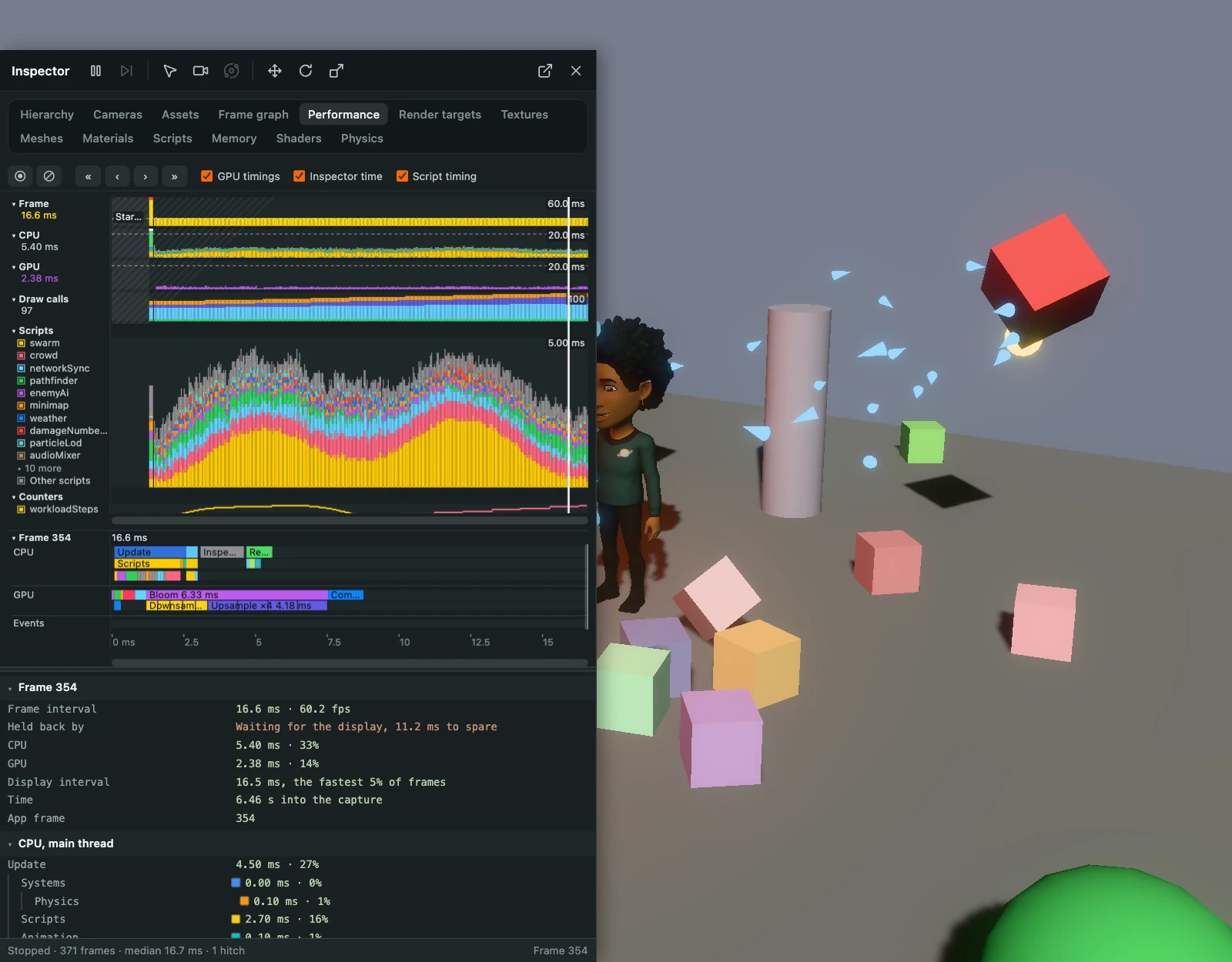
Recording
Press the record button, a ring around a dot, to record every frame. It shows red while recording, and pressing it again stops. The button beside it clears the capture.
The charts cover the whole capture along its time: each frame is as wide as it lasted, so slow frames take the room they took, and a pause longer than a second, such as between two recordings, folds to a break mark labelled with its length. From the top:
| Chart | Shows |
|---|---|
| Frame | The frame interval. |
| CPU | The time of the main thread, by phase: the update of the systems, the physics, the scripts, the animation, the post-update, the render and the Inspector's own time. |
| GPU | The GPU time of the frame, with GPU timings turned on. |
| Draw calls | The draw calls, by kind where the engine counts them. |
| Scripts | The time of each script type, with Script timing turned on. See Script Timing. |
| Counters | The counters the application keeps in app.stats.user. See Counters. |
| Loading | The milestones of the page and the application, the assets loading and the requests in flight. See Loading. |
| Memory | The JavaScript heap, the video memory and each kind of it, as lines sharing a scale. |
| Resources | The count of textures, render targets, shaders, buffers and, on WebGPU, pipelines. |
| Events | A row for each kind of event, marking the frames that had one. See Events. |
A dashed line marks the display interval on the Frame, CPU and GPU charts. Hover a chart for the figures of the frame under the pointer, and a mark for what happened. Click the name of a chart or a section to collapse it, and untick a line in the list beside a chart to hide it; the chart then rescales to the others. Drag the divider between the names and the charts to make the names wider.
To look at part of the capture:
- Click a frame to show it on the frame timeline, with everything recorded for it in the property view below.
- Drag across the charts to select frames together, with their averages, 95th percentiles and largest figures. The timeline then shows their average frame.
- Scroll over the charts to zoom, then drag the scrollbar under them, or drag across them holding Shift, to pan. Double-click to see the whole capture again.
- ‹ and › step a frame, « shows the first and » the newest, following it as frames are recorded. While the panel has focus, the arrow keys step a frame (ten with Shift), Home shows the first and End follows the newest.
Events
| Event | Marks |
|---|---|
| Hitches | Frames that took over twice as long as the median frame, whatever held them back: the frames the user sees stutter. |
| Thread blocked | Frames in which the browser's main thread was busy for 50 milliseconds or more, with the script that ran longest, as Chromium browsers report them. It tells why a frame was slow: a hitch without it was held back by the GPU, the browser or the display, which the hover of the hitch says. |
| Lightmaps | Lightmaps the application baked with the lightmapper, for an application with one. |
| Shaders | Shaders compiled or created, and render pipelines created. |
| Heap shrank | The JavaScript heap shrinking: a garbage collection. |
| Resources | Textures, render targets or buffers created or destroyed. |
| Measures | Spans the application measures with performance.measure. |
The Frame Timeline
The timeline under the charts shows the frame selected along its own time, as a flame chart.
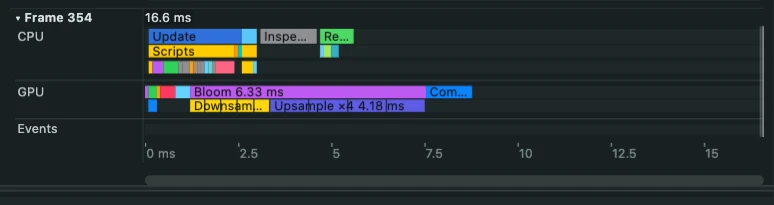
- The CPU line holds the update, the post-update, the Inspector and the render, and the lightmap bakes where they ran. The lines below break them down: the physics step and the animation, the render phases, and with Script Timing the scripts of the update and the post-update with a line breaking them down by script type.
- The GPU line holds the effects, such as bloom or depth of field, with the passes each runs below it, and the passes of their own. See GPU Timings.
- The Events line holds the long tasks of the main thread and the spans measured with
performance.measure, and the lines below it the milestones, the assets and the requests of the frame.
Hover a bar for its time, or a line for everything on it. Click a script type to show it on the Scripts tab, a pass or an effect to show it on the Frame graph tab, and an asset to show it on the Assets tab. Scroll over the timeline to zoom into part of the frame, drag the scrollbar under it or drag across it holding Shift to pan, and double-click it to see the whole frame again. Click its title to collapse it.
The property view below lists everything recorded for the frame: what held it back, the CPU time by phase, the GPU time of each pass, the scripts, the counters, what loaded, the work it submitted, memory and resources, and its events.
GPU Timings
Turn on GPU timings to record the time of the GPU. On WebGPU each pass is timed, and the effect of a pass comes from the frame graph, as the pass it runs for; where the frame graph no longer matches the passes timed, every pass goes on the GPU line. Passes of one name in a row share a label, as Downsample ×5, and the frame details list the time of each. WebGL times the frame as a whole.
Script Timing
Turn on Script timing to time each script type while recording: the time of its update, postUpdate and initialize calls, without the calls nested in them, and how many times each was called. The CPU chart then shows the scripts apart from the other systems, and the timeline draws them where they ran.
The Scripts chart stacks the ten script types that took the longest, over the frames selected together or else the whole capture, so selecting a spike brings forward the scripts behind it. The others share one band, whose hover lists them. ▸ 10 more under the list gives ten more types a band of their own. To follow a script whatever its time, pin it: Pin beside it in the frame details, or Shift+click it in the list. Alt+click a line of a list to show it alone, and again to show them all.
Timing a call costs the application about half a microsecond, counted as the Inspector's time. Time spent in event handlers, timers and promises is not counted. On a page that is not cross-origin isolated, the browser's clock steps by a tenth of a millisecond, so the times of small scripts read best over many frames selected together.
Loading
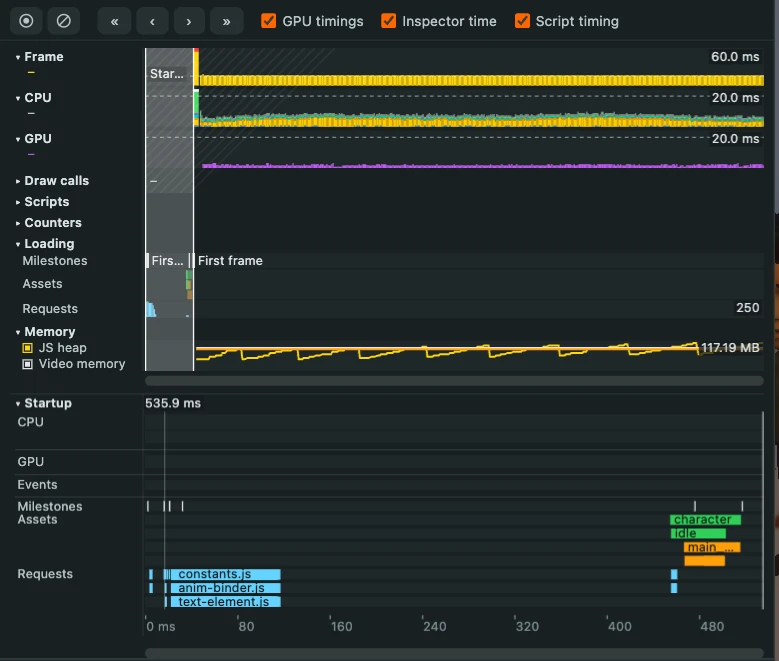
The Loading section shares the time of the charts:
- Milestones marks the moments of the page and the application: the page arriving, the DOM being ready, the first paints, the preload, the application starting and its first frame.
- Assets draws each asset loading, from asking for it to its resource being ready: the request of its file solid and the processing after it, such as parsing, faint. The color is the kind of asset, with a key in the tooltip of the row's name, and failures are red.
- Requests charts how many requests of the page were in flight.
Hover the section for what was loading, and click an asset to show it on the Assets tab.
Recording the Start of the Application
To record from the first frame the application runs, pass record: true to the Inspector, or set the record attribute of the EntityInspector script. Created before the application runs its first frame, as right after app.init(), the Inspector records the start of the application too:
const app = new AppBase(canvas);
app.init(createOptions);

// recording before the first frame records the start of the application too
const inspector = new Inspector(app, { record: true });

app.start();
The capture then begins with a Startup entry, from the page opening to the first frame, with the requests of the page, its milestones, the assets loaded and the times its main thread was blocked. Its details list how long it took, what loaded, the shader compiles, and the slowest assets with their request and processing apart. It is one of the 1000 entries of the capture, so it makes way for frames like any other.
From code, set inspector.recording to start or stop a capture around a part of the application:
// once the part to look at has run
inspector.recording = false;
Counters
The Counters section charts the counters the application keeps in app.stats.user, as each frame ended: a line each, with a scale of its own, as their units are the application's. The frame details list their values, and the frames selected together their averages, 95th percentiles and largest. See Profiling with AppStats for the counters themselves:
// counted afresh each frame
app.on('frameupdate', () => app.stats.user.set('enemies', 0));

// wherever the application counts them
app.stats.user.set('enemies', app.stats.user.get('enemies') + 1);
Engine Builds
The release build of the engine times the update and the render as a whole. The profiler and debug builds add the phases of the render, the batcher's updating and creating of batches among them, the breakdown of the draw calls, the shader compiles and the lightmap bakes.
The Inspector runs inside the application's update, so its own time is shown apart, as Inspector. Turn off Inspector time to leave it out of the CPU chart, which then scales to the application's own time.
Copying the Figures
Right-click the name of the tab to copy the whole capture, every frame with all it recorded, or the name of a chart or a section, or a line of its list, to copy that series a row per frame, as JSON or as CSV for a spreadsheet. Both cover the frames selected together when there are any. Right-click a frame in the charts to copy it, inside the frames selected together to copy their figures, and the timeline to copy its bars.